Invoices
Bill clearly, add your M-PESA or bank details, and keep a record.
Invoices and business documents
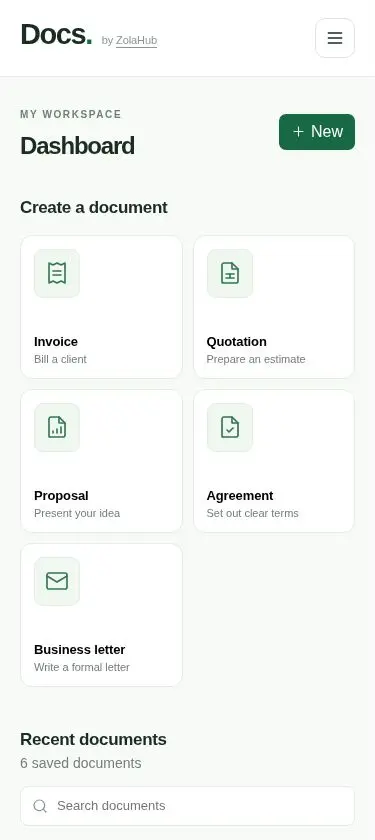
Create invoices, quotations, proposals, agreements and letters in one workspace. Save your work and send a PDF or a link your client can open without an account.
Free to start.
Made for freelancers, shops, caterers, landlords and small businesses. KES is the default currency.
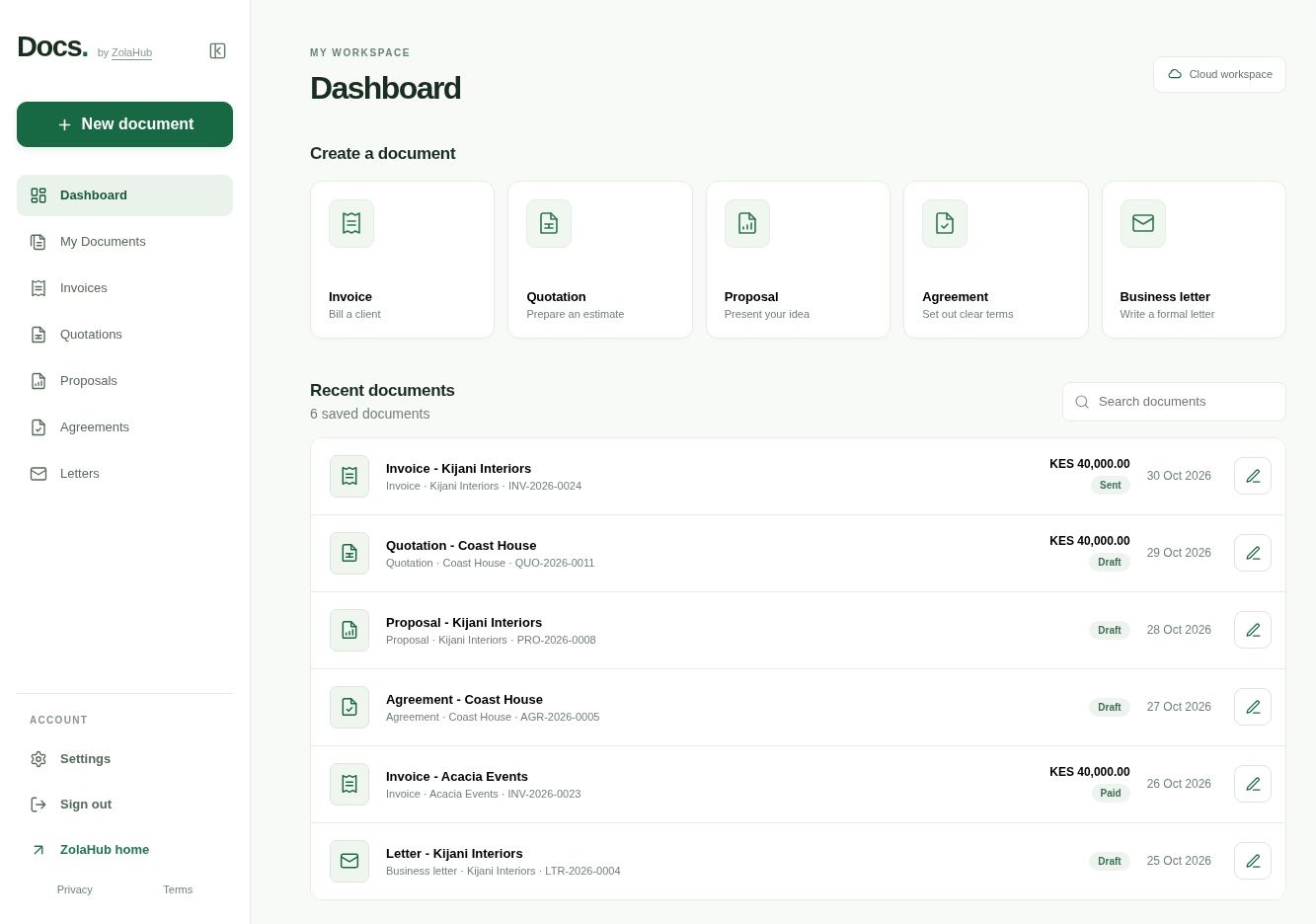
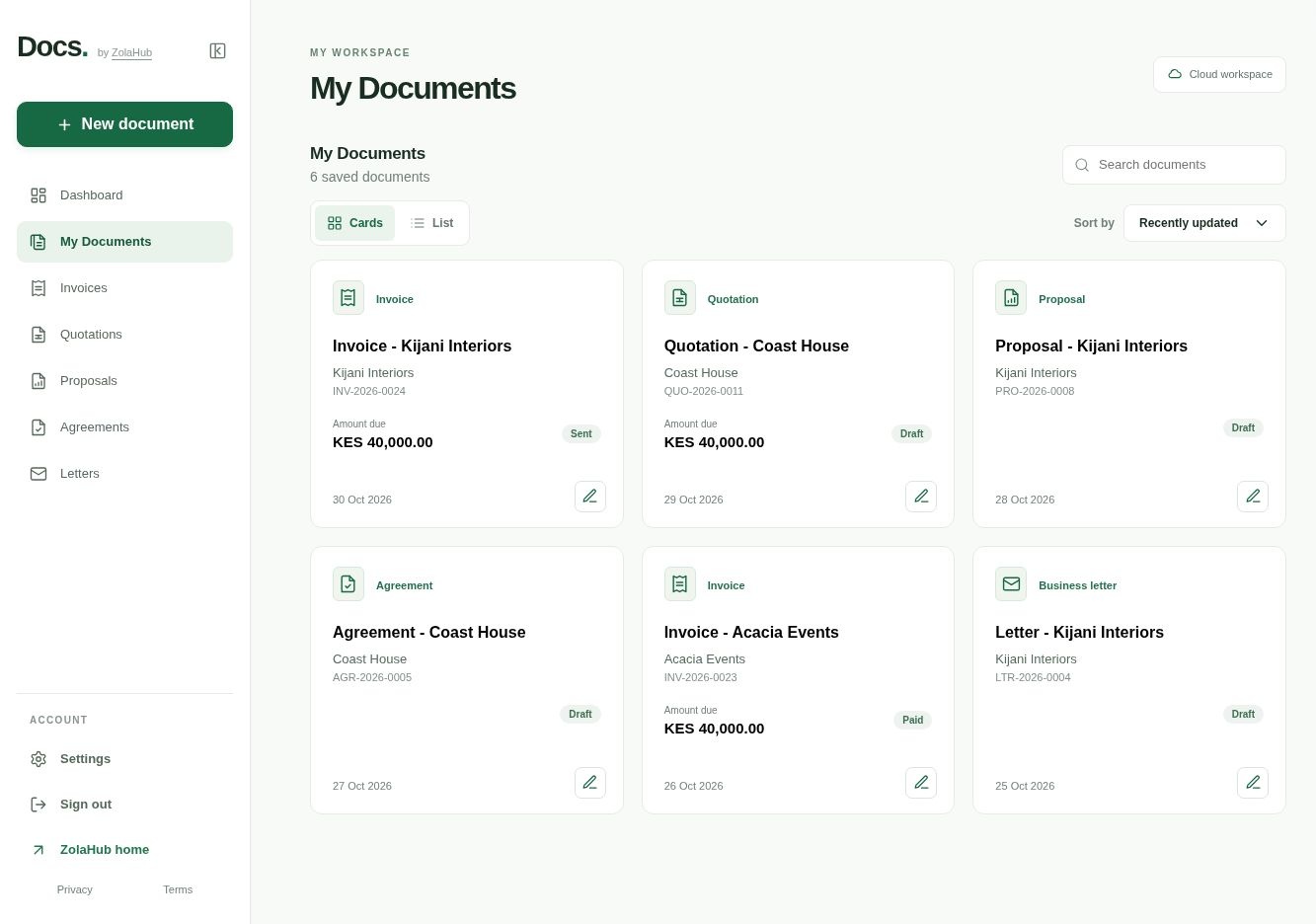

Five documents. One workspace.
Bill clearly, add your M-PESA or bank details, and keep a record.
Agree the price before work begins, then turn the accepted quote into an invoice.
Lay out your scope, approach and next step so clients can review your proposal.
Put terms and responsibilities in writing before work starts.
Professional correspondence in your own words.
Made for your everyday work
Save your business name, logo and payment details once. New documents use your saved details, so you can get straight to the work.
WRITE AND PREVIEW
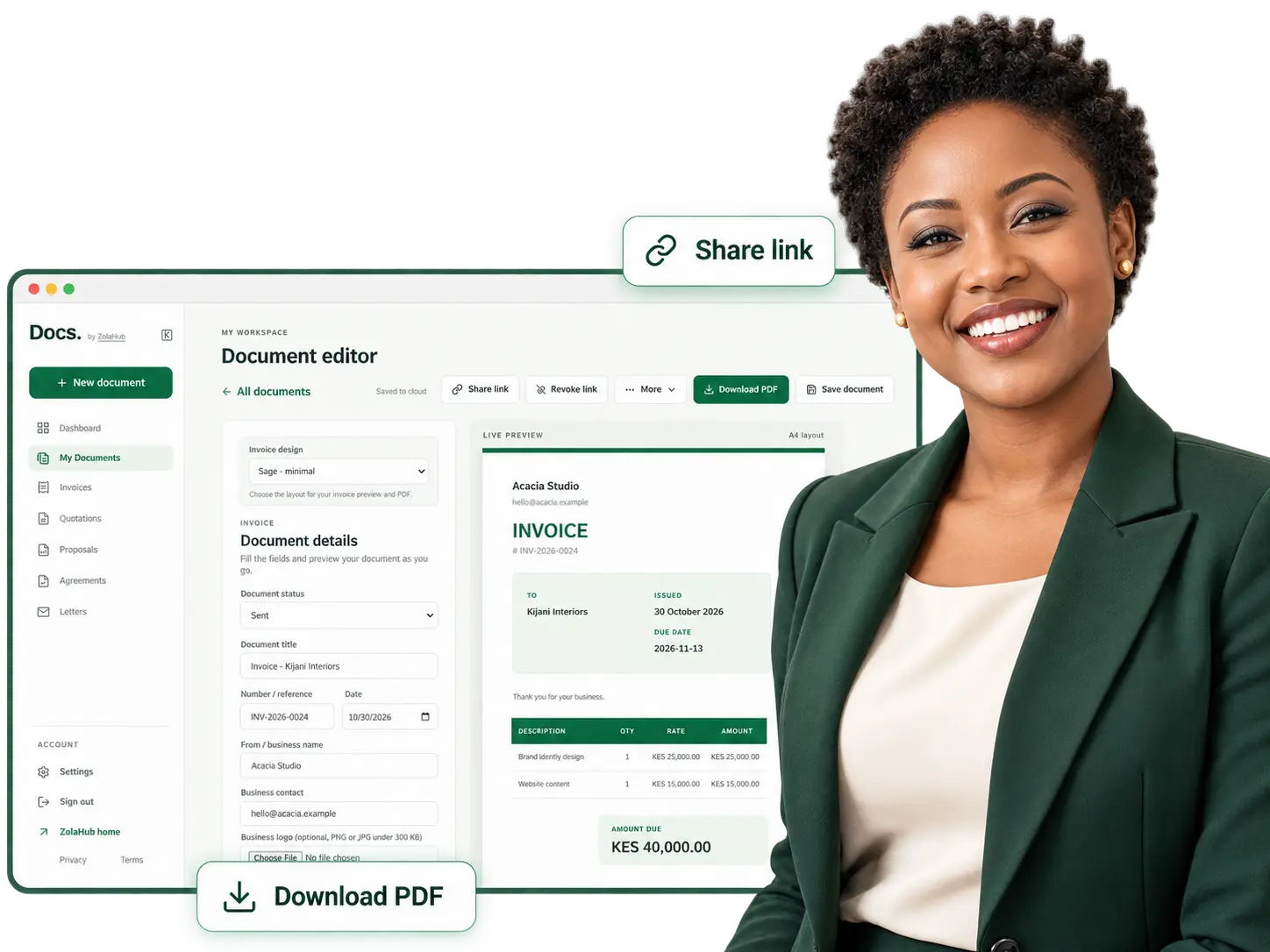
The live A4 preview updates as you type. Format proposals, agreements and letters with headings and lists, or build an invoice with line items and payment instructions.
Choose a general invoice or a format for freelance work, repairs, catering and events, rent, or deposits. Totals and balances are calculated for you.
Download a PDF, print it, or share a link by email, WhatsApp or your device’s supported apps. Your client can view it without an account.
Save client names and contact details, then select them again on your next document.
Duplicate an existing document or turn an accepted quotation into an invoice without starting again.
From your business to your client
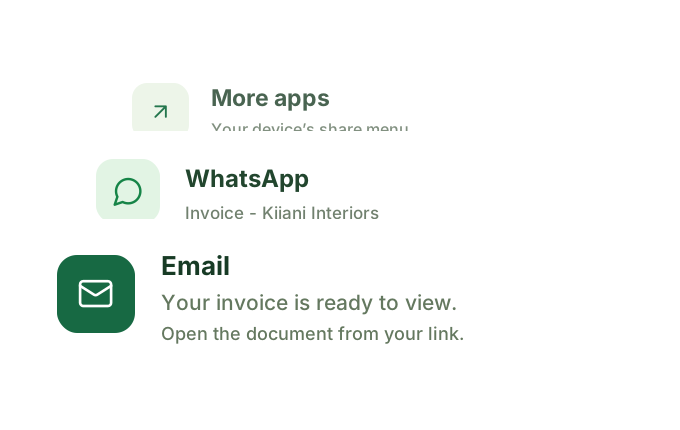
Share a read-only link by WhatsApp or email. Copy it into a message, or choose another app from your device’s share menu where available. Your client can open the document without an account.
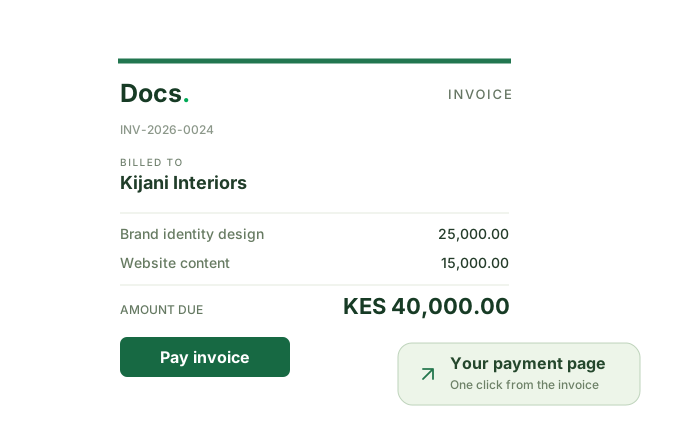
Add a payment link from your provider. Clients can open it from the shared invoice or downloaded PDF, then pay through your provider. You mark the invoice paid when payment is confirmed.
Desktop. Mobile. Cloud.
Your documents save automatically to your account as you work. Sign in on your laptop or phone to access your saved documents, clients and business details.
Create, edit, preview and share from either.
Your documents save automatically as you work.
Search by name, browse by type, and switch between cards and a list.
From first draft to sent
Pick the type and template that fit the job.
Fill in your client and content while the preview updates.
Download the PDF or share a link, then get back to work.
For the people behind the work
Create, save and send business documents from one workspace. From your first draft to the PDF you send your client.
Before you start
Invoices, quotations, proposals, agreements and business letters. Specialised invoice templates cover freelance work, repairs, events, rent and deposits.
Yes. Add your business name, contact details and logo. Write your own content, with headings, bold text and lists for proposals, agreements and letters.
Yes. Documents save to your account while you work. Sign in on another device to continue with your saved documents and business profile.
No. A client can open your shared read-only link without signing in. Links expire after 30 days, and you can revoke them sooner.
Your client pays you directly or through your payment provider. Add till, paybill or bank details as payment instructions, or add your provider’s payment link to show a Pay invoice button. Payment status is updated manually.
Sign in to access your workspace. A shared link lets its holder view that document, and you can revoke it. You can also export your account data or delete your account in Settings.
Your next document starts here
Free plan
Add your logo, remove ZolaHub Docs branding and create unlimited documents.
Documents saved to your account